Writing publisher and subscriber nodes. Python
It is already known what a node is, as such, the following section of the course is devoted to show the coding of nodes capable of publishing and subscribing to a topic. The code in this section will be developed in python.
Publisher node in python
Make sure to be in a brand new terminal window and no ROS command is currently running.
It will be necessary first to create a new package. This package should be contained in the ros2_ws workspace, within its /src folder. The name provided to this new package will be py_pubsub.
ros2 pkg create --build-type ament_python --license Apache-2.0 py_pubsub
For more reference on package creation consult the package creation section.
Inside this package, spsecifically in py_pubsub/py_pubsub create a python script, name it publisher_script.py.
Copy this content into the new python script.
import rclpy
from rclpy.node import Node
from std_msgs.msg import String


class MinimalPublisher(Node):

   def __init__(self):
      super().__init__('publisher')
      self.publisher_ = self.create_publisher(String, 'topic', 10)
      timer_period = 0.5  # seconds
      self.timer_ = self.create_timer(timer_period, self.timer_callback)
      self.count_ = 0

   def timer_callback(self):
      msg = String()
      msg.data = 'Hello World: %d' % self.count_
      self.publisher_.publish(msg)
      self.get_logger().info('Publishing: "%s"' % msg.data)
      self.count_ += 1


def main(args=None):
   rclpy.init(args=args)

   minimal_publisher = MinimalPublisher()

   rclpy.spin(minimal_publisher)

   minimal_publisher.destroy_node()
   rclpy.shutdown()


if __name__ == '__main__':
   main()
1. Publisher, python. Examining the code.
The first lines correspond to import libraries.
import rclpy
from rclpy.node import Node
from std_msgs.msg import String
rclpyis a Python client library for ROS 2. It provides Python bindings for the ROS 2 middleware, enabling developers to write ROS 2 nodes and applications using the Python programming language.from rclpy.node import Nodeimports theNodeclass from therclpy.nodemodule.from std_msgs.msg import Stringimports theStringmessage type from thestd_msgs.msgmodule.
All these imported libraries must be specified in the dependencies file called package.xml. More about this, later in the tutorial.
Next, a class is created:
class MinimalPublisher(Node):

   def __init__(self):
      super().__init__('publisher')
      self.publisher_ = self.create_publisher(String, 'topic', 10)
      timer_period = 0.5  # seconds
      self.timer_ = self.create_timer(timer_period, self.timer_callback)
      self.count_ = 0

   def timer_callback(self):
      msg = String()
      msg.data = 'Hello World: %d' % self.count_
      self.publisher_.publish(msg)
      self.get_logger().info('Publishing: "%s"' % msg.data)
      self.count_ += 1
A class of name
MinimalPublisheris created and it inherits from classNode.The constructor of the class is defined, for that,
super().__init__('publisher')is issued. This is a call to theNodeclass’ constructor function. Additionally, it is assigned a node name, which ispublisher.Afterwards, an attribute of name
publisher_is created and stores the result ofcreate_publisher(), which defines an object that publishes messages of type String, over a topic namedtopic, with aqueue sizeof 10. Queue size is a required QoS (quality of service) setting that limits the amount of queued messages if a subscriber is not receiving them fast enough.
The create_publisher() function belongs to the rclpy.node.Node class and it has the following structure:
create_publisher(<msg_type>, <topic>, <qos_profile>, *, <callback_group=None>, <event_callbacks=None>)
An attribute of name
timer_is created and stores the result ofcreate_timer(), which defines a timer with 0.5 of time period attached to a callback function of nametimer_callback. Again, thecreate_timer()function belongs to therclpy.node.Nodeclass and it has the following structure:
create_timer(<timer_period_sec>, <callback>, <callback_group=None>, <clock=None>)
Next, the definition of the callback function is coded; this will be invoked every 0.5 seconds, as it was configured in the
create_timer()function.First, a message of type
String()is created and its content is filled with aHello Worldmessage followed by a counter that starts at 0.The
publisher_attribute is issued to publish the message.The message is published to the console with the
self.get_logger().info('Publishing: "%s"' % msg.data)line.And the counter attribute is increased in one.
Lastly, the main function is defined.
def main(args=None):
   rclpy.init(args=args)

   minimal_publisher = MinimalPublisher()

   rclpy.spin(minimal_publisher)

   minimal_publisher.destroy_node()
   rclpy.shutdown()
First the rclpy library is initialized.
A node is created by instantiating an object of the
MinimalPublisherclass.rclpy.spin(minimal_publisher)starts the ROS 2 event loop for the specified node (minimal_publisher). The event loop is responsible for processing messages, handling callbacks, and maintaining the communication infrastructure of the ROS 2 system.minimal_publisher.destroy_node()explicitly destroys the node represented byminimal_publisher.rclpy.shutdown()shuts down the ROS 2 system. It releases resources allocated by the ROS2 middleware and cleans up the environment.
2. Publisher, python. Adding dependencies
Once the python script is ready, make sure the dependencies to run this script are correctly configured in the ROS 2 environment. Navigate to py_pubsub/package.xml and add the following just below the <license> tag:
<exec_depend>rclpy</exec_depend>
<exec_depend>std_msgs</exec_depend>
The final structure should resemble the following:

About the tags found in the package.xml:
<exec_depend>tag indicates a runtime dependency. It means that the package requires the specified dependency to be available during execution. This means that when the package is run, it expectsstd_msgsorrclpyto be installed and available.<test_depend>tag indicates a dependency required for testing purposes. It means that the package needs the specified dependency to run its tests.
3. Publisher, python. Adding an entry point
Navigate to py_pubsub/setup.py and add the following within the console_scripts brackets of the entry_points field:
entry_points={
      'console_scripts': [
               'talker = py_pubsub.publisher_script:main',
      ],
},
4. Build publisher node and run
At this point the script is created, the dependencies configured and the entry point correclty setup.
Open a brand new terminal, make sure that no other ROS2 command is currently running, navigate to the workspace directory and execute either of these two commands:
colcon build
colcon build --symlink-install
The first command will build all the packages contained in the workspace; it will build them by copying the built artifacts (binaries, libraries, headers, etc.) into an install directory. While the second one, will also build all the packages contained in the workspace, but rather than copying the built artifacts, it will use symbolic links to these ones. The way the built artifacts are handled results in having to execute colcon build every time a change is performed in the source code to see their effects, while with colcon build --symlink-install, every time a change is performed in the source code, it will not be necessary to perform the building operation afterwards. Hence, for the moment it is preferred to use colcon build --symlink-install to avoid building the workspace after every change in the source code.
A message similar to this one, should be expected after building the workspace:
Starting >>> my_first_package
Starting >>> py_pubsub
Finished <<< py_pubsub [4.62s]
Finished <<< my_first_package [5.13s]

Summary: 2 packages finished [6.44s]
Now, source the setup file:
source install/setup.bash
For more reference on sourcing the setup file, see sourcing the setup file.
And run the publisher node that was recently created.
ros2 run py_pubsub talker
As a result, something similar to this should be displayed in the terminal window.
[INFO] [1712152551.805539058] [publisher]: Publishing: "Hello World: 0"
[INFO] [1712152552.225817483] [publisher]: Publishing: "Hello World: 1"
[INFO] [1712152552.725589332] [publisher]: Publishing: "Hello World: 2"
...
See that every 0.5 seconds a new message will be printed in the terminal window. This is because the callback function in the node code was programmed to be issued every 0.5 seconds. The messages that are printed as well, are part of the program of the node. See the code explanation, to recall the programming behind the publisher node.
Open a new terminal and with the talker node still being running, execute:
ros2 topic echo /topic
This will result in something similar to:
data: 'Hello World: 121'
---
data: 'Hello World: 122'
---
data: 'Hello World: 123'
---
...
This is expected since it is known that the talker node publishes messages to the topic of name /topic.
Finally, it can be verified the name of the node by executing the following in a new terminal.
ros2 node list
The expected result is:
/publisher
At this point it is important to distinguish these three elements:

This is the python script name.
This is the node name.
This is the executable name.
And from now on, these three will carry the same name to avoid confussions.
Subscriber node in python
Navigate to py_pubsub/py_pubsub and create a python script called: listener.py. Copy this content into the new python script.
import rclpy
from rclpy.node import Node

from std_msgs.msg import String


class MinimalSubscriber(Node):

   def __init__(self):
      super().__init__('listener')
      self.subscription_ = self.create_subscription(
            String,
            'topic',
            self.listener_callback,
            10)
      self.subscription_  # prevent unused variable warning

   def listener_callback(self, msg):
      self.get_logger().info('I heard: "%s"' % msg.data)


def main(args=None):
   rclpy.init(args=args)

   minimal_subscriber = MinimalSubscriber()

   rclpy.spin(minimal_subscriber)

   minimal_subscriber.destroy_node()
   rclpy.shutdown()


if __name__ == '__main__':
   main()
1. Subscriber, python. Examining the code.
Overall, the code for the subscriber node is similar to the publisher node.
The first lines correspond to import libraries. These are the same libraries as in the publisher node example.
import rclpy
from rclpy.node import Node
from std_msgs.msg import String
Next, a class is created:
class MinimalSubscriber(Node):

   def __init__(self):
      super().__init__('listener')
      self.subscription_ = self.create_subscription(
            String,
            'topic',
            self.listener_callback,
            10)
      self.subscription_  # prevent unused variable warning

   def listener_callback(self, msg):
      self.get_logger().info('I heard: "%s"' % msg.data)
The constructor of the MinimalSubscriber class issues the create_subscription() function, which receives as arguments: String, as the message type; topic, as the topic to subscribe to; self.listener_callback, as the callback function to be called every time a message arrives to the topic, and a queue size of 10. The structure for the create_subscription() function is given by:
create_subscription(<msg_type>, <topic>, <callback>, <qos_profile>, *, <callback_group=None>, <event_callbacks=None>, <raw=False>)
Afterwards, the callback function simply prints the message received in the terminal window.
Lastly, the main function, as in the publisher node, initializes the rclpy library, creates the subscription node, spins it, explicitely destroys it when issued from the terminal window and shuts down the ROS 2 system.
def main(args=None):
   rclpy.init(args=args)

   minimal_publisher = MinimalPublisher()

   rclpy.spin(minimal_publisher)

   minimal_publisher.destroy_node()
   rclpy.shutdown()
2. Subscriber, python. Adding dependencies
As the libraries to use in this program are exactly the same as in the publisher node, then no new dependency should be added. If, for some reason, it were going to be used a new library in the subscriber node, then that library should be added as a dependecy in the py_pubsub/package.xml file.
3. Subscriber, python. Adding an entry point
Navigate to py_pubsub/setup.py and add the following within the console_scripts brackets of the entry_points field:
'listener = py_pubsub.listener:main'
This entry_points field should be remain like this:
entry_points={
     'console_scripts': [
         'talker = py_pubsub.publisher_script:main',
         'listener = py_pubsub.listener:main'
     ],
},
4. Build subscriber node and run
At this point the script is created, the dependencies configured and the entry point correclty setup.
Open a brand new terminal in the Docker session, make sure that no other ROS 2 command are currently running, navigate to the workspace directory and execute:
colcon build --symlink-install
As it was explained in the publisher node part, this will build all packages of the workspace.
Now, source the setup file:
source install/setup.bash
For more reference on sourcing the setup file, see this section .
And run the subscriber node that was recently created.
ros2 run py_pubsub listener
Notice that nothing will be displayed in the terminal window because no messages are currently being sent to the topic that this node is subscribed to.
Open a new terminal and execute the talker node:
ros2 run py_pubsub talker
After this, return to the terminal where the listener node was executed. It should be displayed the messages being sent to the topic of name topic.
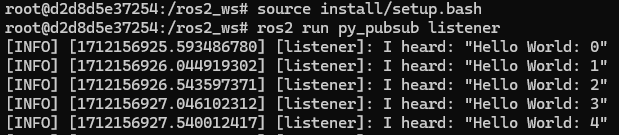
Finally, open a new terminal and execute:
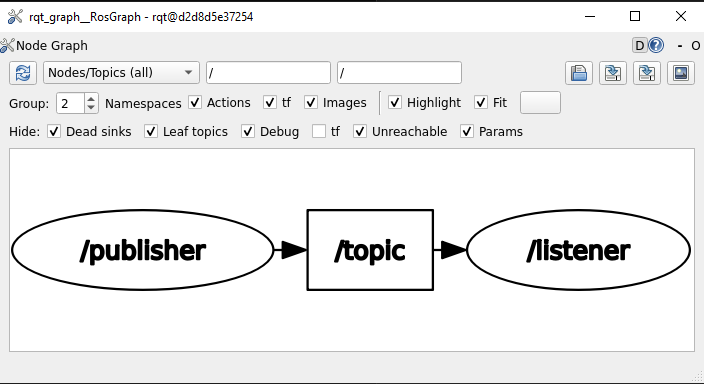
rqt_graph
See that the two nodes: talker and listener are visible and they are publishing and subscribing to topic respectively.
Practice
Have trutlesim node running. Create a new node called topics_practice that performs:
A countdown starting at 5 and be displayed in the terminal.
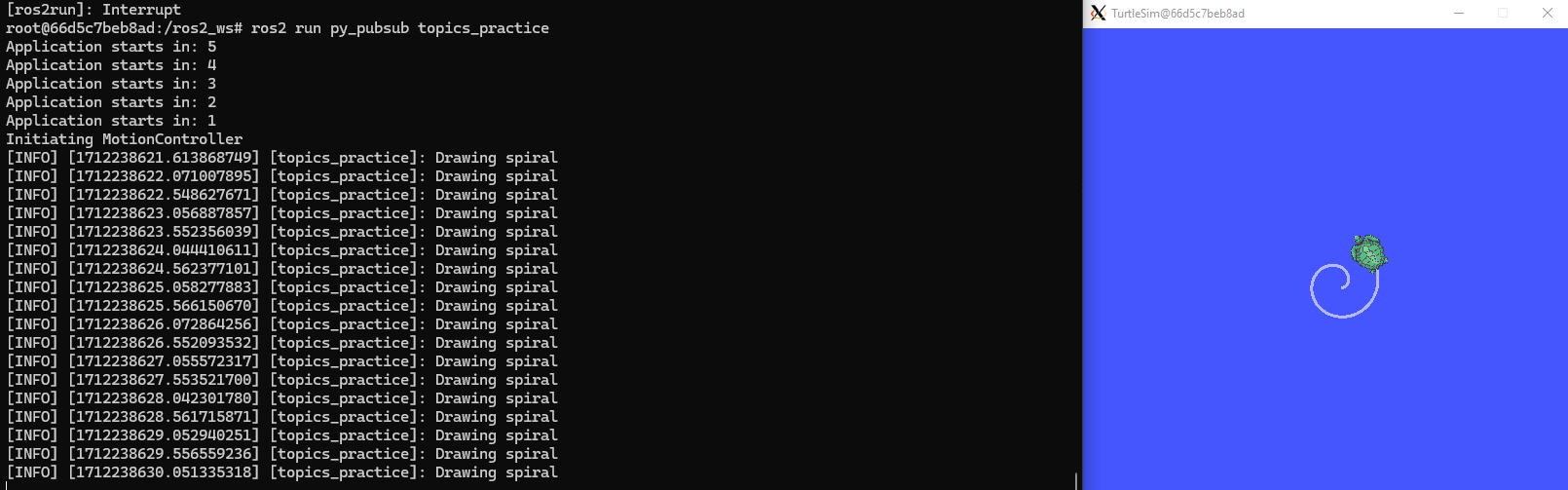
When counter reaches 0 moves the turtle drawing a growing spiral. Print in the terminal “Drawing spiral”.
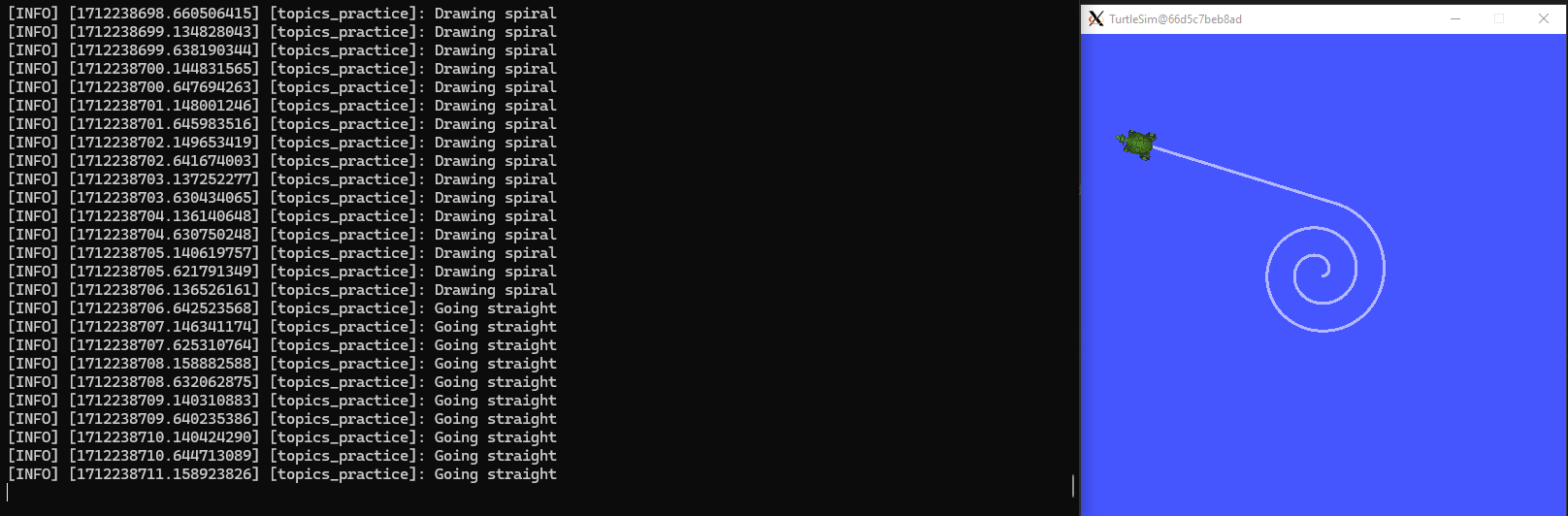
When the turtle reaches some pre-defined boundaries in the screen (horizontal and vertical limits defined by the coder), make the turtle advance in a straight line. Print in the terminal “Going straight”.
See image below for an example of the results:
Optional
Have trutlesim node running. Create a new node called topics_practice_b that performs:
The same as
topics_practicebut add the turtle, the functionality of avoiding walls. Whenever the turtle is too close to the walls (around one unit away of the wall), make it turn. Print in the terminal “Avoiding walls”.