Nodes
What is it?
A node is a process that performs computation, communicates with other nodes, or both.
Typically responsible for specific tasks within a robotic system, such as controlling motors, processing sensor data, or implementing algorithms.
Each node can send and receive data from other nodes via topics, services, actions, or parameters.
Nodes play a crucial role in ROS 2 applications, facilitating communication, computation, and modularity within robotic systems.

Do not forget
Remember to have the ROS 2 environment properly setup. Perform the following, if the ROS 2 package cannot be found when executing it:
source install/setup.sh
See this example:
Look at the error of not being able to find the desired package. This is because the workspace was not correctly sourced.

Source the appropriate setup script, that is, run
source install/setup.sh, to correctly configure the environment.

Notice that the sourcing is performed inside the workspace folder. More information on sourcing the environment, check it here.
Important commands. Nodes
Make sure to be in a brand new terminal window and no ROS command is currently running.
The following can be executed with a node:
1. Running a node
In order to run a node, perform:
ros2 run <package_name> <executable_name>
This command launches an executable script from a package. See this example:
ros2 run turtlesim turtlesim_node
Where, turtlesim is the name of the package and turtlesim_node, is the name of the executable; This last, will tipycally coincide with the node name.
2. Getting info from a node
To print the information of a node, open a new terminal and execute:
ros2 node info <node_name>
See this example:
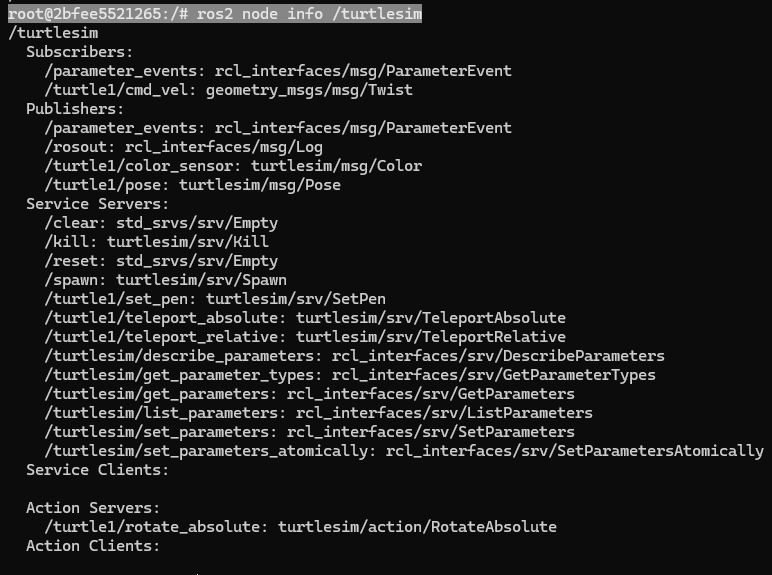
ros2 node info turtlesim
It displays the information about:
The topics that this node is subscribed to.
The topics, this node is publishing to.
The service servers associated with this node.
The service clients associated with this node.
The action servers associated with this node.
The action clients associated with this node.
And in a new terminal, execute:
rqt_graph
The result will be:

The rqt_graph utility permits to see an overview of the nodes that are currently being executed. See more information about rqt_graph in this section of the course.
3. Listing all nodes
To list all available nodes, open a new terminal and execute:
ros2 node list
As an example, open a new terminal and execute:
ros2 run turtlesim turtle_teleop_key
Afterwards, return to the terminal where it was ran ros2 node list and run it again. Two active nodes will be listed:
/turtlesim
/teleop_turtle
4. Remapping nodes
In order to reassign default node properties, like node name, topic names, service names, etc., to custom values, the following command is used. Check its structure.
ros2 run <package_name> <executable_name> --ros-args --remap __node:=<new_node_name>
As an example, recall that two nodes are already running from the previous part of this tutorial: the turtlesim and teleop_turtle nodes. Open a new terminal and execute:
ros2 run turtlesim turtlesim_node --ros-args --remap __node:=my_turtlesim_node
It reassigns the turtlesim_node node properties into a new node with custom name value of: “my_turtlesim_node”.
Check in another terminal, the list of nodes and see also the rqt graph for this example.

And in a new terminal, execute:
rqt_graph
The result will be:

ROS arguments are important when executing a node. The way ROS arguments are modified, is by using --ros-args in the execution command. After that, --remap and __node are used to specify that the node name should be remapped to my_turtlesim_node.
It is possible as well to modify the namespace, topic/service names and parameters of a node. See this link for more information: https://docs.ros.org/en/rolling/How-To-Guides/Node-arguments.html